
GridGain for .NET/C#
This chapter explains how to use .NET Core to build and run a simple Hello World example in .NET that starts a node, puts a value into the node and then gets the value.
Prerequisites
GridGain .NET was officially tested on:
JDK |
Oracle JDK 8 and later, Open JDK 8 and later, IBM JDK 8 and later |
OS |
Linux (any flavor), Mac OSX (10.6 and up), Windows (XP and up), Windows Server (2008 and up), Oracle Solaris |
ISA |
x86, x64, SPARC, PowerPC |
Network |
No restrictions (10G recommended) |
and:
| Name | Value |
|---|---|
.NET Framework |
.NET 4.0+, .NET Core 2.0+ |
IDE |
Visual Studio 2010+, Rider, Visual Studio Code |
Running a Simple .NET Example
-
Install .NET Core SDK (version 2+): https://dotnet.microsoft.com/download
-
Use the CLI (unix shell, Windows CMD or PowerShell, etc.) to run the following two commands:
> dotnet new consoleThis creates an empty project, which includes a project file with metadata and a .cs file with code.
And:
> dotnet add package GridGain.IgniteThis modifies the project file -
.csproj- to add dependencies. -
Open
Program.csin any text editor and replace the contents with the following:using System; using Apache.Ignite.Core; namespace ggqsg { class Program { static void Main(string[] args) { var ignite = Ignition.Start(); var cache = ignite.GetOrCreateCache<int, string>("my-cache"); cache.Put(1, "Hello, World"); Console.WriteLine(cache.Get(1)); } } } -
Save and then run the program:
> dotnet run
And that’s it! You should see a node launch and then display "Hello, World".
Next Steps
From here, you may want to:
-
Read more about using GridGain: Developers Guide, Administrators Guide
-
Use GridGain Web Console to monitor your cluster
-
Explore the additional examples included with GridGain
Using GridGain Web Console
GridGain Web Console is an interactive configuration, management, and monitoring tool, built on top of Apache Ignite Web Console.
-
Go to https://console.gridgain.com and create an account.
-
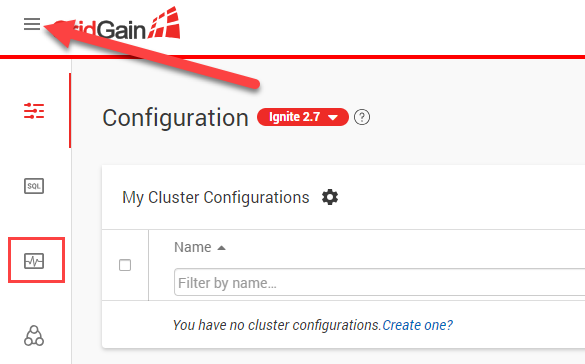
Log in with your new account and go to the "Monitoring Dashboard" screen. Click the three horizontal lines at the top in order to expand the left-hand menu:
-
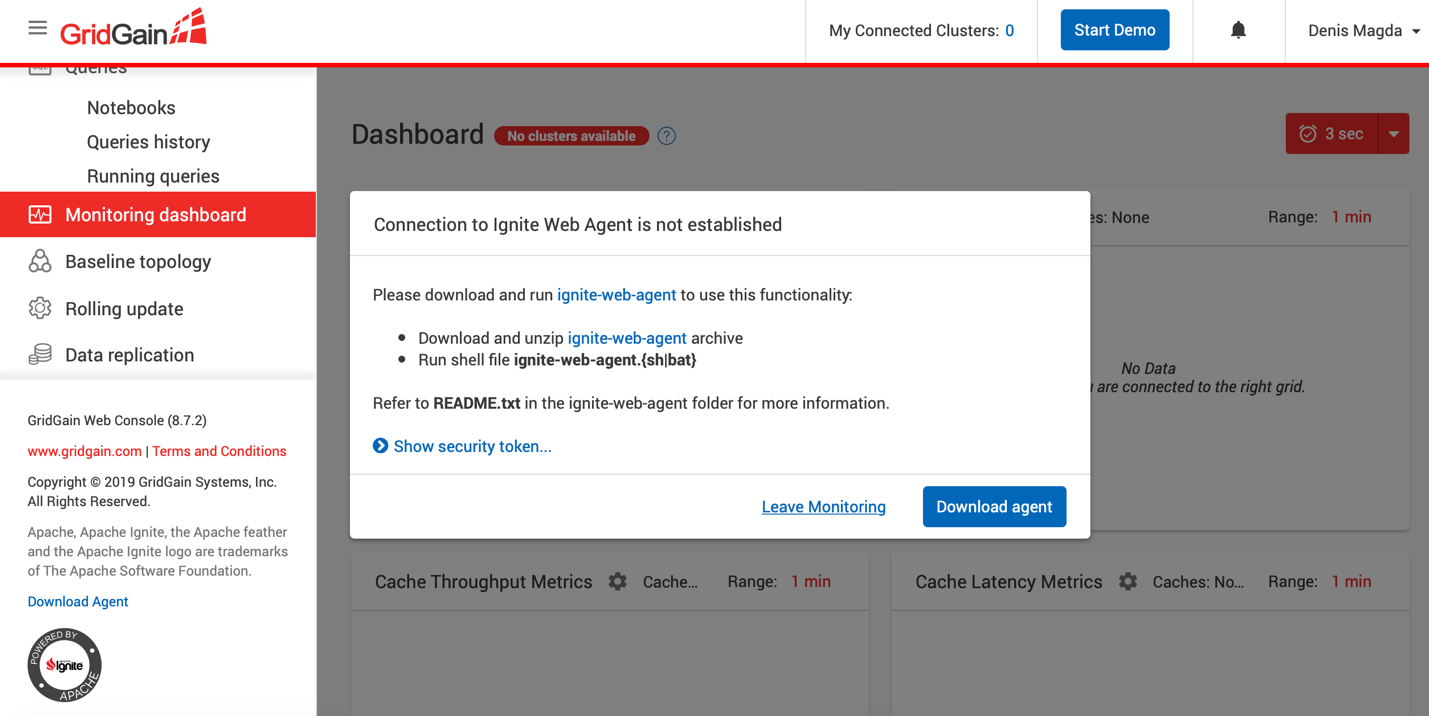
Click the "Download Agent" button as shown in the screenshot below:
-
Extract the web agent into a separate folder.
-
Navigate to the folder where you extracted the web agent files, and execute the
ignite-web-agent.sh(orignite-web-agent.bat) script. -
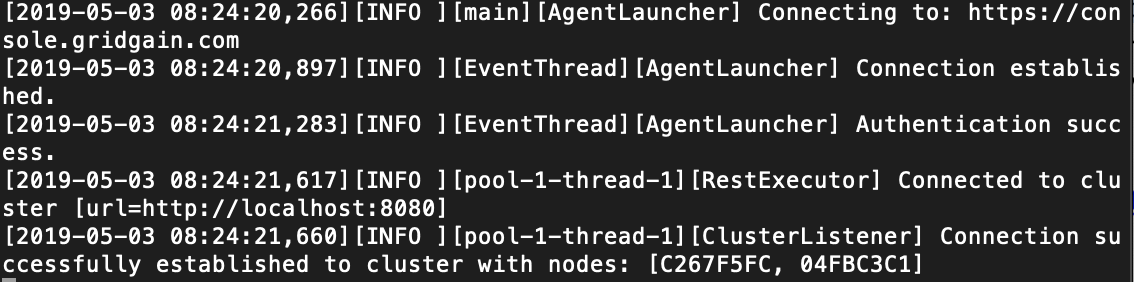
Ensure that the agent can connect to both console.gridgain.com and your single node cluster started earlier. Look for messages similar to the following in the agent’s log:
-
Go back to the console.gridgain.com Monitoring Dashboard and refresh it. Confirm that the tool successfully displays metrics for your local single node cluster.
© 2021 GridGain Systems, Inc. All Rights Reserved. Privacy Policy | Legal Notices. GridGain® is a registered trademark of GridGain Systems, Inc.
Apache, Apache Ignite, the Apache feather and the Apache Ignite logo are either registered trademarks or trademarks of The Apache Software Foundation.